Mailchimp to HubSpot: Upgrading to Full-Funnel Marketing
Mailchimp is the undisputed king of the email broadcast. For early-stage startups and small e-commerce shops, its simplicity is unmatched. However, as a B2B or scaling B2C company matures, the limitations of "batch-and-blast" email marketing become growth bottlenecks.
You eventually realise you don't just need an email tool; you need a system that tracks a user's journey from their first anonymous website visit, through downloading a whitepaper, to finally booking a sales call.
This is the catalyst for upgrading to HubSpot Marketing Hub. Moving from Mailchimp to HubSpot is not a lateral software switch—it is an operational upgrade. You are moving from an Email Service Provider (ESP) to a comprehensive Marketing Automation Platform (MAP).
This guide details the strategic data mapping and technical execution required to make this leap without losing your hard-earned subscriber data or breaking your existing lead generation forms.
Key Takeaways
- Lists vs. Properties: Mailchimp relies heavily on static "Audiences" and "Tags". HubSpot relies on dynamic "Contact Properties" and "Active Lists". This requires a complete rethink of how you segment data.
- The Integration Bridge: Use the native Mailchimp-HubSpot integration to sync data during a 30-day parallel run before turning Mailchimp off entirely.
- Asset Rebuilding: Landing pages, forms, and email templates cannot be magically imported. They must be manually rebuilt in HubSpot's design tools.
- Deliverability Warm-up: HubSpot uses different sending IPs. You must warm up your new dedicated or shared IP to avoid hitting spam folders in your first week.
Table of Contents
- Why Companies Upgrade to HubSpot
- The Integration Bridge (Parallel Running)
- Pre-Migration Data Cleanup
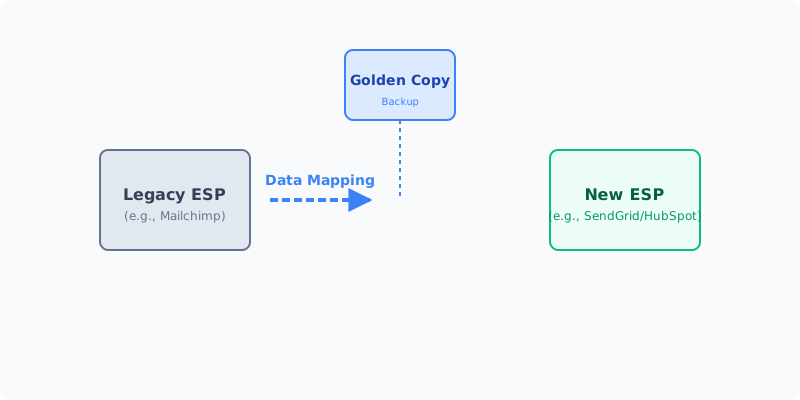
- Data Mapping: Lists to Properties
- The Step-by-Step Migration Process
- UK GDPR & Consent Mapping
- Common Pitfalls
- Frequently Asked Questions
| Feature / Capability | Mailchimp Starts at £10/mo | HubSpot Marketing Hub Starts at £17/mo (Starter) / £700/mo (Pro) |
|---|
Why Companies Upgrade to HubSpot
The price jump from Mailchimp to HubSpot Marketing Hub (Professional or Enterprise) is significant. Businesses justify this cost when they hit specific operational limits:
- Lead Scoring and Sales Handoff: Mailchimp tells you who opened an email. HubSpot tells you who opened an email, visited your pricing page three times, and watched a webinar, and then automatically alerts your sales team that the lead is "Hot."
- Omnichannel Attribution: HubSpot tracks the entire customer journey. It can tie a closed deal in your CRM back to the specific Google Ad they clicked six months ago.
- Complex Automation: Mailchimp’s "Customer Journeys" are basic. HubSpot’s "Workflows" allow for complex branching logic, updating CRM properties, rotating leads among sales reps, and triggering internal Slack notifications.
We may earn a commission if you sign up through this link.
The Integration Bridge (Parallel Running)
Because rebuilding assets (forms, emails, landing pages) takes time, you should use the Native HubSpot-Mailchimp Data Sync to run both platforms in parallel for 30 to 60 days.
How it works:
- Connect the two systems via HubSpot's App Marketplace.
- New leads captured on your existing Mailchimp forms will automatically sync into HubSpot as Contacts.
- Your marketing team can begin building the new HubSpot workflows and testing them on internal lists, while Mailchimp continues to handle the live, public-facing email blasts.
- Once all forms on your website have been replaced with HubSpot forms, and all automated emails are rebuilt in HubSpot Workflows, you sever the integration and cancel Mailchimp.
Pre-Migration Data Cleanup
Do not import your dirty Mailchimp data into a pristine, expensive HubSpot portal. HubSpot charges by "Marketing Contacts"—do not pay for dead weight.
- Scrub Hard Bounces: Export all hard bounces and unsubscribes. You will import these into HubSpot separately to add them to the global "Opt-out" list.
- Delete the Unengaged: Identify contacts in Mailchimp who haven't opened an email in 12 months. Delete them or archive them. Do not migrate them.
- Consolidate Tags: If you have 50 different Mailchimp tags (e.g.,
webinar_2022,webinar_2023), consolidate them into a single concept before export.
Data Mapping: Lists to Properties
This is the most critical conceptual shift in the migration.
In Mailchimp, if you want to email people from London, you might put them in a "London" List or add a "London" Tag. In HubSpot, you store "London" in the Contact Property called "City". You then create an Active List that says: "Show me everyone where City = London."
The Mapping Exercise:
- Export your Mailchimp Audiences and Tags to a spreadsheet.
- For every Tag, decide if it should become a Custom Property in HubSpot (e.g., a dropdown field for "Industry") or if it should map to a standard HubSpot field.
- When you format your CSV for the final import into HubSpot, use columns to represent these properties, rather than relying on tags.
The Step-by-Step Migration Process
Phase 1: Portal Setup & Tracking
- Install the HubSpot Tracking Code on every page of your website. This begins building the cookie data immediately.
- Configure your email sending domains in HubSpot (SPF, DKIM, DMARC) to authenticate your emails.
Phase 2: Asset Recreation
- Templates: Rebuild your master email templates in HubSpot's Drag-and-Drop editor.
- Forms: Recreate every Mailchimp embedded form or pop-up as a HubSpot Form.
- Landing Pages: Move any Mailchimp-hosted landing pages to HubSpot Landing Pages or your native CMS.
Phase 3: The Data Import
- Import Opt-Outs: Import your Mailchimp suppression list and map it to the "Opted out of all email" property in HubSpot. This is a critical legal requirement.
- Import Active Contacts: Import your cleaned CSV, ensuring your columns map perfectly to your newly created HubSpot properties.
Phase 4: Workflow Activation & Cutover
- Recreate Mailchimp automations as HubSpot Workflows.
- Swap the embedded form codes on your live website.
- Turn on the HubSpot Workflows.
- Send your first broadcast email from HubSpot (ensure you segment and warm up the IP if sending to a massive list).
UK GDPR & Consent Mapping
HubSpot handles GDPR compliance significantly better than Mailchimp, but only if configured correctly.
- Legal Basis for Processing: When importing your contacts, HubSpot will ask you to specify the legal basis for communicating with them. You must map your Mailchimp opt-in records to HubSpot's "Subscription Types."
- Double Opt-in: If you used Double Opt-in in Mailchimp, ensure it is enabled in HubSpot before you swap your live forms.
- Consent Checkboxes: Update your newly built HubSpot forms to include explicit consent checkboxes that link to your privacy policy, fulfilling UK GDPR transparency requirements.
Common Pitfalls
- Paying for Non-Marketing Contacts: HubSpot allows you to designate contacts as "Marketing" (you pay for them and can email them) or "Non-Marketing" (free storage, but you can't email them). Ensure you set old customers or vendors as Non-Marketing upon import, or you will receive a massive bill.
- Ignoring IP Warm-up: If you move 100,000 contacts and blast them on day one from HubSpot, Gmail will throttle you. Break your first few sends into smaller batches over two weeks.
- The "Lift and Shift" Mentality: Rebuilding a bad Mailchimp autoresponder exactly as it was in HubSpot is a waste of money. Use the migration to redesign the user journey using HubSpot's advanced conditional logic.
Frequently Asked Questions
Do I lose my historical open and click data? Yes. You cannot import historical email engagement metrics (like who opened an email in 2022) from Mailchimp into HubSpot's timeline. You only import the contact record and their properties.
Can I use HubSpot for marketing and keep my current CRM? Yes. While HubSpot has its own CRM, you can use the Marketing Hub and integrate it natively with Salesforce, Pipedrive, or Microsoft Dynamics.
How long does this migration take? For a mid-market company with 5-10 active automations and 20 forms, expect a 4 to 6-week implementation project to rebuild assets and test data flows.