How to Export Sage 50 Data to CSV for Xero (And Why .001 Backups Are Safer)
You can export lists (Nominal Codes, Customers, Suppliers) and Audit Trail reports from Sage 50 Accounts UK to CSV via File > Office Integration or Reports > Export, but flat CSV files sever payment allocations (`SA`/`PA`) from invoices (`SI`/`PI`) and require manual translation of Sage VAT T-codes (`T0`, `T1`, `T2`, `T9`). For a full historical Xero switch, extracting directly from a Sage `.001` Data Only backup preserves relational history without manual Excel manipulation.
In this guide (5 sections)
Key Takeaways
Quick Summary- Lists export cleanly; ledgers don’t
- CSV works adequately for basic contact addresses and nominal code lists, but fails to reconstruct multi-line historical invoices and part-payments.
- Audit Trail split trap
- Sage 50’s Audit Trail exports SI, SC, SR, SA, PI, PC, PP, and JD lines separately: re-linking part-paid invoices in Excel takes tens of hours.
- Sage T-Code translation
- T1 (20% Standard), T0 (Zero Rated), T2 (Exempt), T9 (Outside Scope), and T20 (Reverse Charge) must map accurately to Xero MTD VAT rates.
- MTD compliance warning
- Manually editing VAT figures in Excel between export and import risks breaking HMRC VAT Notice 700/22 digital link rules.
- Zero-CSV alternative
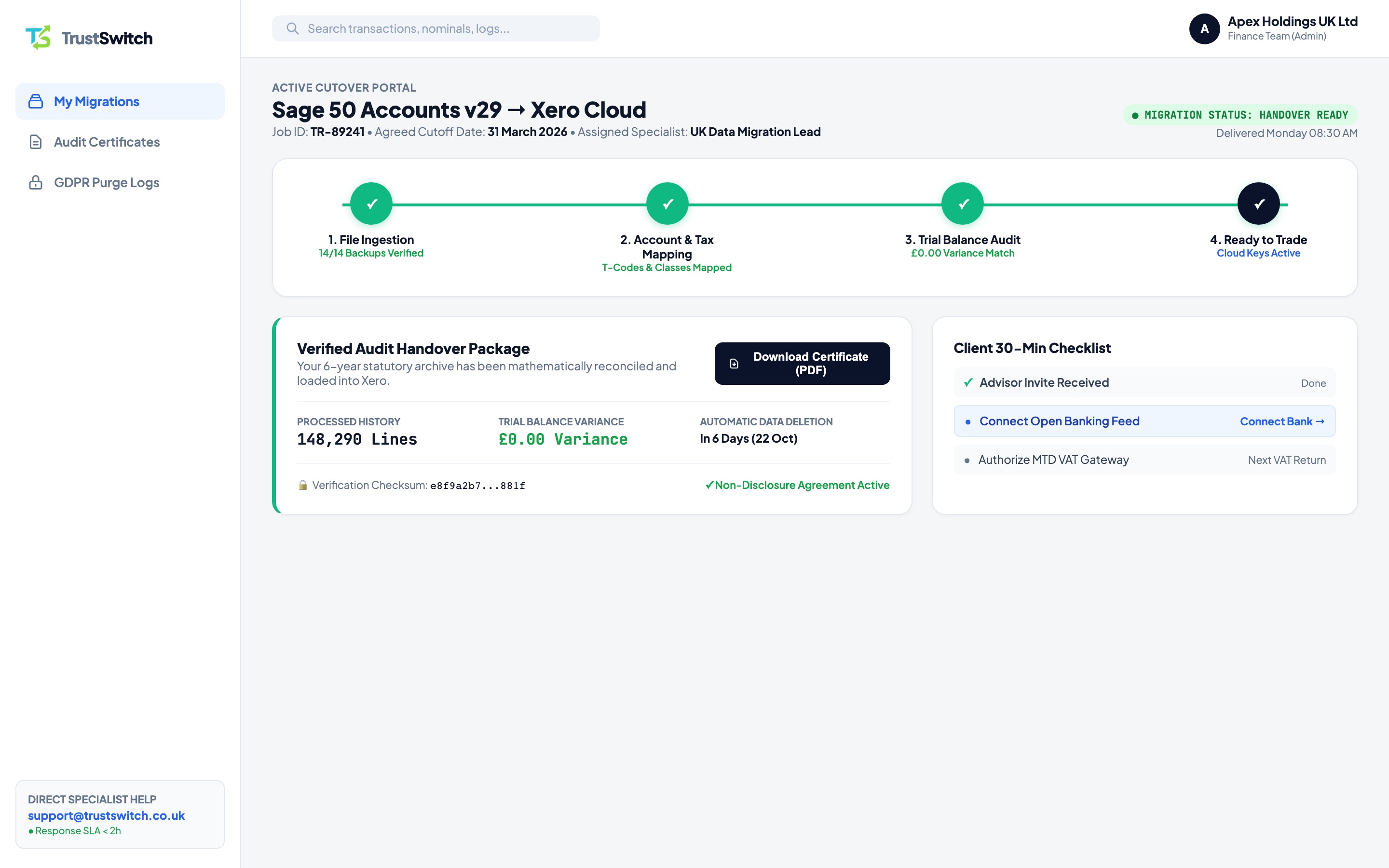
- Generate a single `File > Backup` (`.001` Data Only) in 2 minutes and let TrustSwitch convert your full ledger from £245 + VAT.
Can You Migrate From Sage 50 to Xero Using CSV Exports Alone?
You can export reference lists (Nominal Codes, Customers, and Suppliers) from Sage 50 Accounts UK[1] to CSV cleanly, but exporting historical Audit Trail transactions to CSV breaks payment allocations (SA/PA) away from their underlying invoices (SI/PI) and forces manual translation of Sage VAT T-codes. For businesses with more than a handful of monthly invoices, building a ledger from flat CSV files risks VAT rounding variances and weeks of manual VLOOKUP cleanup.
If you need a clean list export for scoping, follow the exact steps below. If you want your complete multi-year ledger moved intact, skip flat spreadsheets and use a single .001 Data Only backup via our Sage 50 to Xero migration service.
Step-by-Step: Exporting Lists & Check Reports From Sage 50 UK
- Switch to Single-User Mode & Run Check Data: Ask all staff to log out of Sage 50. Log in as
MANAGER, navigate toFile > Maintenance > Check Data, and confirm 0 Errors appear before extracting anything[1]. - Export Your 5 Benchmark PDF Reports First: Before exporting raw CSVs, save PDF copies of your Trial Balance, Profit & Loss, Balance Sheet, Aged Debtors Analysis (Detailed), and Aged Creditors Analysis (Detailed) as of your cutover date.
- Export Nominal Codes (Chart of Accounts): Open the Nominal codes module, click Select All (or ensure no filter is active), and click Send to Excel (saving as UTF-8
.csv). - Export Customer & Supplier Directories: Open Customers, clear any search filters, and click Send to Excel (or
Reports > Customer details). Repeat inside Suppliers so account references (A001,B002), addresses, and VAT numbers are preserved. - Take a Data-Only
.001Golden Copy Backup: Go toFile > Backup, tick Data files only (unticking heavy custom layout/report archives), and save the.001file into your Golden Copy backup vault.
Why Sage 50 Audit Trail CSVs Break During DIY Xero Imports
| Sage 50 Export Table | What CSV Gives You | Why Xero Rejects or Misstates It |
|---|---|---|
Audit Trail (SI, SC, SR, SA) | Separate unlinked rows for Sales Invoices, Credits, Receipts, and Allocations | Xero’s invoice CSV importer cannot auto-allocate historical SR/SA part-payments across batches |
Purchase Ledger (PI, PC, PP, PA) | Disconnected supplier bill lines and bank payment lines | Leaves paid historical supplier bills showing as unpaid on Xero’s Aged Payables report |
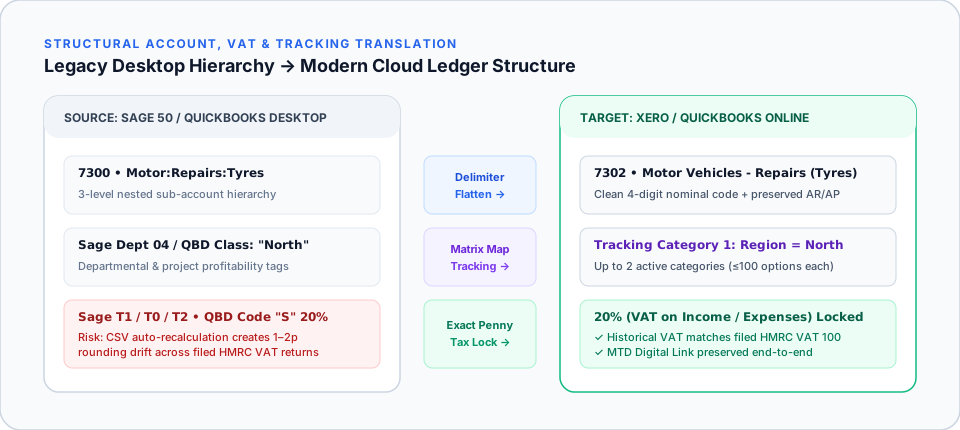
Sage VAT T-Codes (T0, T1, T2, T9, T20) | Numeric tax flags (T1 = 20%, T9 = Outside Scope) | Xero requires exact string labels (20% (VAT on Income), No VAT) and recalculates line rounding |
Departments (000–999) | Split across header and line-item export reports | Easily dropped on multi-line bills (see Migrating Sage Projects & Departments to Xero) |
| Manual Excel Edits (MTD Risk) | Temptation to adjust rounding or copy-paste VAT summaries in Excel | Manual copy-paste intervention on open VAT periods breaches HMRC VAT Notice 700/22[2] |
Sage 50 UK T-Code Reference for Xero Mapping
When reviewing your Sage export, never map T0 and T9 to the same Xero rate:
T1(Standard 20%): Maps to20% (VAT on Income)or20% (VAT on Expenses).T5(Reduced 5%): Maps to5% (VAT on Income)or5% (VAT on Expenses).T0(Zero-Rated 0%): Maps toZero Rated IncomeorZero Rated Expenses(populates VAT Return Boxes 6 or 7).T2(Exempt): Maps toExempt IncomeorExempt Expenses.T9(Outside Scope of VAT): Used for payroll journals, bank transfers, Corporation Tax, and HMRC VAT payments; must map to Xero’sNo VATso Boxes 6 and 7 are never overstated.T20/T21(Reverse Charge / CIS): Maps to Xero’s dedicated UK Domestic Reverse Charge rates.
The Safer Alternative: Upload One .001 Backup
Because UK companies must preserve 6 years of statutory accounting records under Companies Act 2006 s.386[3], piecing together tens of thousands of Audit Trail CSV lines by hand rarely pays off (compare the real hours in Sage 50 vs Xero Pricing UK). With TrustSwitch, you upload a single Sage .001 backup file and receive a fully mapped Xero organisation in 48 to 72 hours (or over one weekend), reconciled to £0.00 Trial Balance variance from £245 + VAT.
Frequently Asked Questions
What is the difference between a Sage `.001` backup and CSV exports?
Why did Sage Check Data report warnings before my export?
How large should my Sage 50 backup file be?
Can TrustSwitch migrate from older perpetual versions of Sage 50 (e.g. v24–v29)?
Skip Manual CSV Wrangling: Upload Your .001 Backup Instead
Take a 2-minute Data Only `.001` backup in Sage 50 and let a UK ledger specialist deliver a £0.00 variance Xero account in 48–72 hours.