QuickBooks Desktop Classes vs Xero Tracking Categories: 2026 UK Reporting Guide
QuickBooks Desktop tracks departmental profitability using a single hierarchical Class list (often forcing compound names like "London:Consulting"), whereas Xero uses up to two independent active Tracking Categories (recommended maximum 100 options per category) for clean matrix reporting. During migration, unassisted CSV tools strip historical class tags unless each journal and invoice line is explicitly mapped.
In this guide (7 sections)
Key Takeaways
Quick Summary- Matrix vs single tree
- Two orthogonal Xero Tracking Categories (e.g. Region × Service Line) replace dozens of repetitive compound Classes in QuickBooks Desktop.
- Hard Xero limits to plan around
- Xero supports 2 active Tracking Categories (4 total including archived) and recommends ≤100 options per category for fast report rendering.
- Conversion balance rule
- Xero’s standard Conversion Balances screen cannot hold Tracking Categories directly; historical line-item migration or pre-conversion journals are required for comparative departmental P&Ls.
- Live collaborator access
- Department heads and external UK accountants can run customisable Xero P&L layouts in-browser without exporting static spreadsheets.
- Preserved YoY history
- TrustSwitch maps QBD Classes directly onto every migrated historical invoice, bill, and journal line so prior-year departmental comparatives work from day one.
How Does Xero Replace QuickBooks Desktop Classes & Sub-Classes?
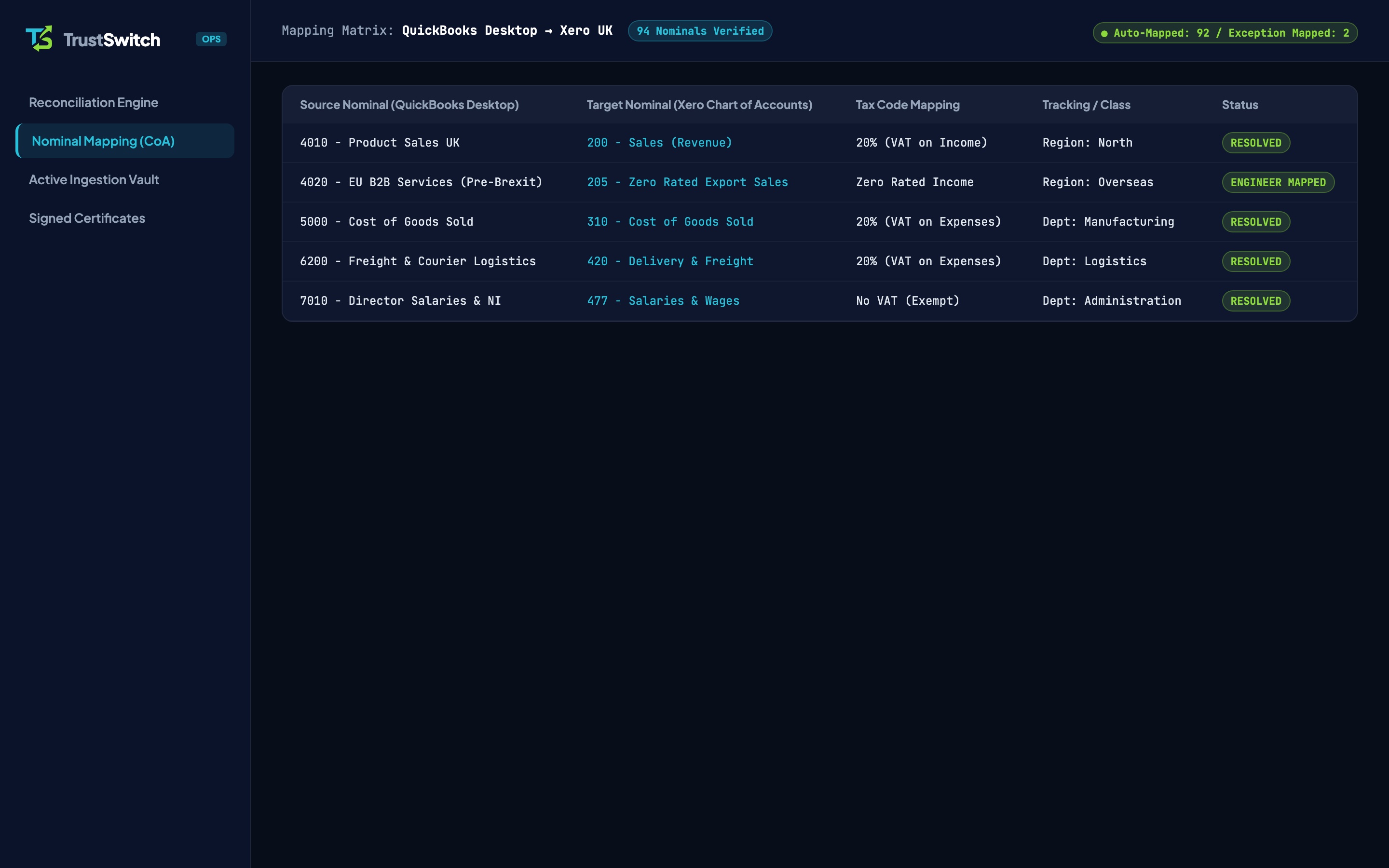
QuickBooks Desktop tracks departmental, branch, or job performance using a single hierarchical Class list (often nested up to five levels deep), whereas Xero uses Tracking Categories: allowing up to two independent active dimensions with a recommended maximum of 100 options per category[1]. Moving to Xero replaces sprawling compound Class trees (such as North:Commercial, North:Residential, South:Commercial) with clean matrix Profit & Loss filtering across two separate axes (Region × Sector).
If you are planning a QuickBooks Desktop to Xero migration, structuring your Tracking Categories before importing historical transactions ensures you retain multi-year departmental P&L comparisons without hitting Xero’s reporting ceilings.
Architectural Comparison: QuickBooks Desktop vs Xero Reporting
| Reporting Capability | QuickBooks Desktop (Legacy) | Xero Cloud (2026 UK Standard) |
|---|---|---|
| Dimensional Tagging Model | Single Class list (with nested Sub-Classes) | Up to 2 active Tracking Categories (4 total incl. archived)[1] |
| Recommended Option Count | Unlimited (often bloats to 500+ unarchived codes) | Up to 100 options per category for fast report generation[1] |
| Matrix P&L Filtering | Requires repetitive compound sub-classes | Native cross-filtering (e.g. Filter by London AND Consulting) |
| Custom P&L Report Layouts | Rigid desktop report templates exported to Excel | Browser-based Layout Editor with drag-and-drop nominal schedules |
| Tracking on Opening Balances | Supported on journal lines | Standard Conversion Balances sit untracked without pre-conversion journals[2] |
| Stakeholder & Advisor Access | Restricted to Windows RDS server users | Real-time browser access with unlimited user seats |
Three Rules for Mapping QuickBooks Classes Into Xero Cleanly
1. Split Compound Sub-Classes Into Two Orthogonal Axes
Many UK firms built huge QuickBooks Class lists over a decade to work around having only one Class field: creating combinations like Manchester - Installations, Manchester - Maintenance, Bristol - Installations, and Bristol - Maintenance. In Xero, splitting those into Category 1: Location (Manchester, Bristol) and Category 2: Service Line (Installations, Maintenance) shrinks 40 compound classes down to 12 clean options while giving directors far richer P&L slicing.
2. Audit Active vs Historic Options Against the 100-Option Limit
Xero Central advises keeping each active Tracking Category at or below 100 options[1]. If you used QuickBooks Classes as one-off customer job numbers from 2017 to 2026 (accumulating 400+ classes), importing all 400 into one Xero Tracking Category will slow down report generation. During pre-flight scoping, our UK specialist keeps all active and recent statutory classes distinct while consolidating closed pre-statutory job codes cleanly.
3. Why Balances-Only Migrations Wipe Out Departmental History
According to Xero Central’s conversion balance rules[2], Xero’s standard Conversion Balances screen does not accept Tracking Category tags directly. If you use a basic tool that only imports summary opening balances (see Xero Conversion Toolbox Limits), your prior-year departmental Profit & Loss reports in Xero will be completely blank unless complex reversing pre-conversion manual journals are constructed.
Preserving Full Multi-Year Class History With TrustSwitch
When you migrate via TrustSwitch’s QuickBooks Desktop to Xero service, we do not dump untracked opening balances into Xero:
- Line-Level Extraction: Every historical invoice, credit note, supplier bill, and journal line in your
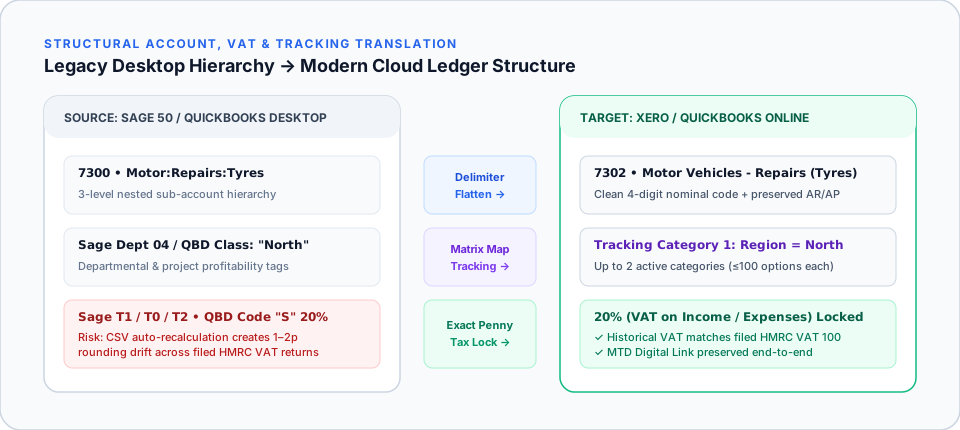
.QBBbackup is read alongside its original QuickBooks Class tag. - Pre-Built Tracking Taxonomy: We configure your two Xero Tracking Categories and map your legacy Classes (alongside your Chart of Accounts and UK VAT codes) before importing a single pound.
- Verified Departmental Tie-Out: Your cloud ledger is handed over with a £0.00 Trial Balance variance so both company-wide and departmental year-on-year P&L comparisons work from Monday morning.
Frequently Asked Questions
What if our QuickBooks Desktop file has more than 100 Classes?
Can Xero run a Balance Sheet filtered by Tracking Category?
Do memorised custom reports from QuickBooks Desktop copy into Xero?
Which TrustSwitch tier includes Class-to-Tracking Category mapping?
Keep 100% of Your Departmental & Class History in Xero
Don’t flatten years of departmental P&L insight into untracked opening balances. Let our UK specialist map your QBD Classes into Xero Tracking Categories.