How to Export Your Chart of Accounts from QuickBooks Desktop (.IIF, Excel & .QBB)
To export your Chart of Accounts list from QuickBooks Desktop, switch to Single-User Mode as Administrator and navigate to File > Utilities > Export > Lists to IIF Files (or export the Account Listing report to Excel/CSV). Remember that `.IIF` and CSV list exports capture account names and types only: they do not carry reconciled historical transactions, unpaid supplier bills, or customer invoice histories.
In this guide (7 sections)
Key Takeaways
Quick Summary- Single-User Admin required
- QuickBooks Desktop locks list exports until all network users log out and Administrator switches via File > Switch to Single-user Mode.
- IIF vs Excel/CSV
- Exporting the Account Listing report to Excel/CSV is cleaner for human review; `.IIF` is a legacy tab-delimited Intuit format prone to import syntax errors.
- Turn on Account Numbers first
- Many QBD files have nominal numbers switched off in Edit > Preferences > Accounting; enable or assign 3–4 digit codes before migrating to Xero.
- Sub-account colon hierarchy
- QBD nests accounts up to 5 levels deep (`Motor:Repairs:Tyres`); Xero uses a flat Chart of Accounts and requires clean delimiter flattening.
- Full ledger = .QBB backup
- Instead of piecing together `.IIF` lists and manual journals, a single `.QBB` backup lets TrustSwitch migrate your CoA + full history together.
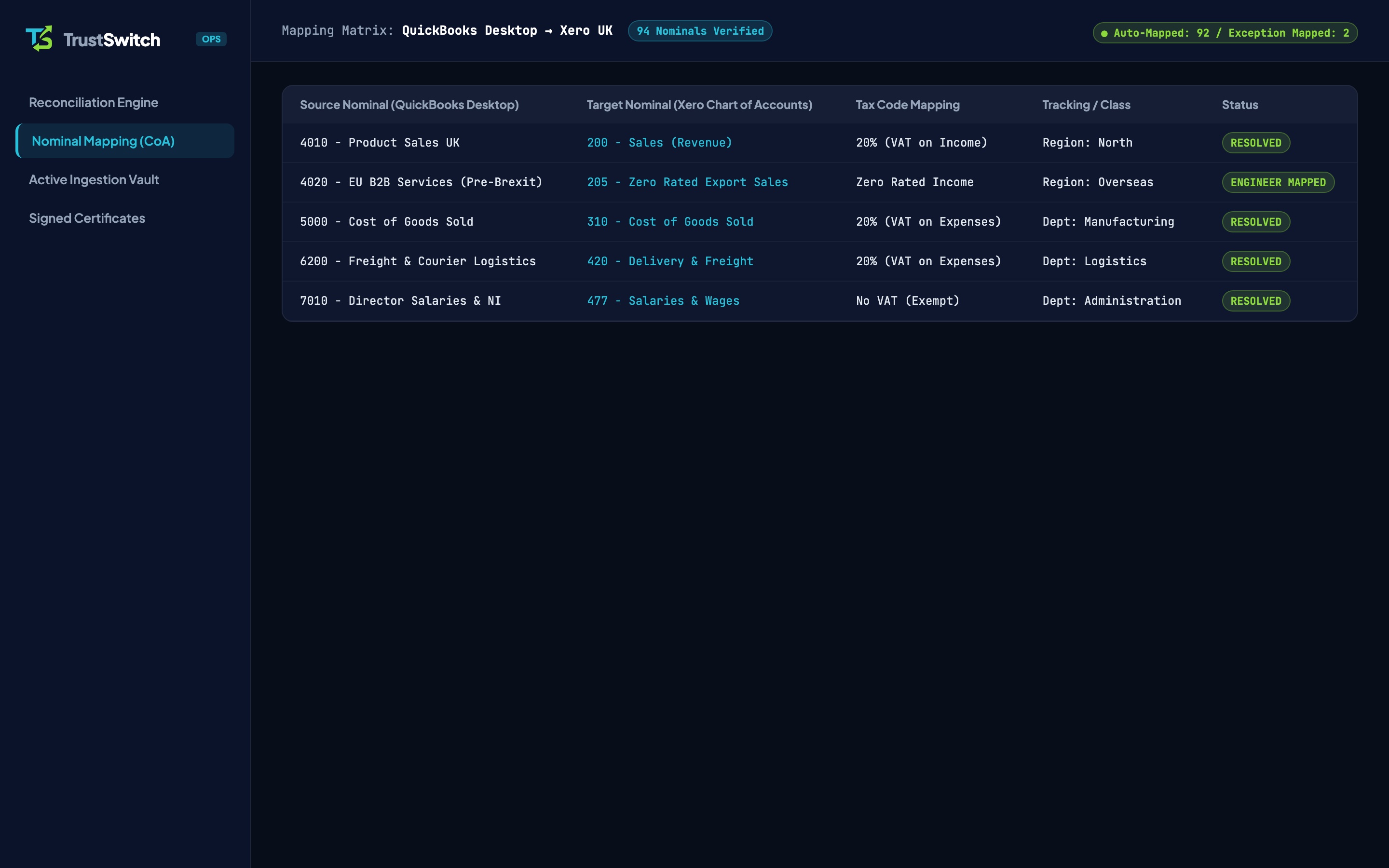
How Do You Export Your Chart of Accounts From QuickBooks Desktop?
To export your Chart of Accounts structure from QuickBooks Desktop[1], switch to Single-User Mode as Administrator and use either Lists > Chart of Accounts > Reports > Account Listing > Excel (best for clean spreadsheet review and Xero mapping) or File > Utilities > Export > Lists to IIF Files (Intuit’s legacy tab-delimited list format). Keep in mind that both methods export account names and types only: neither exports your reconciled multi-year invoices, unpaid supplier bills, or verified opening balances.
If you are planning a full cloud transition, review our QuickBooks Desktop to QuickBooks Online and QuickBooks Desktop to Xero routes before spending days formatting spreadsheets manually.
Step-by-Step: Exporting Your Account Structure Safely
- Check Whether Nominal Account Numbers Are Switched On: Open
Edit > Preferences > Accounting > Company Preferences. Many UK QuickBooks Desktop files grew for years with "Use account numbers" unticked. Switching account numbers on (or letting your specialist assign standard 3- or 4-digit codes during mapping) prevents duplicate-name collisions in Xero. - Log In as Administrator in Single-User Mode: Ask all colleagues on your network or RDS server to close QuickBooks. Click
File > Switch to Single-user Mode. - Method A (Recommended for Review): Export Account Listing to Excel/CSV: Press
Ctrl+Ato open your Chart of Accounts, click the Reports button at the bottom of the window, select Account Listing, and click Excel > Create New Worksheet, saving as.csv. - Method B (Legacy Intuit Format): Export Lists to
.IIF: Navigate toFile > Utilities > Export > Lists to IIF Files, tick Chart of Accounts only, and saveCompany_CoA_2026.IIFto an encrypted local folder. - Save a Full
.QBBGolden Copy Backup: Navigate toFile > Back Up Company > Create Local Backup(selecting Complete Verification under Options) so you hold an untouched Golden Copy backup containing both your lists and every underlying transaction.
.IIF vs Excel CSV vs .QBB Backup: Which File Does What?
| Export Format | What It Contains | What It Leaves Behind | Best Use Case |
|---|---|---|---|
Account Listing (.CSV / .XLSX) | Account code, name, type, tax code, current balance snapshot | All historical transactions, open AR/AP invoices, and sub-ledger detail | Accountant scoping & Chart of Accounts Mapping |
Intuit Interchange (.IIF) | Raw tab-delimited !ACCNT header definitions | Historical ledger lines; rejected natively by Xero and modern QBO importers | Archival reference between legacy QBD installs |
QuickBooks Backup (.QBB) | 100% of lists, sub-accounts, Classes, UK VAT entries, invoices, bills & reconciliations | Local Attach folder PDFs (archive folder separately) | Complete £0.00 variance migration to Xero or QBO |
Three Structural Traps When Importing Exported Lists Into Cloud Software
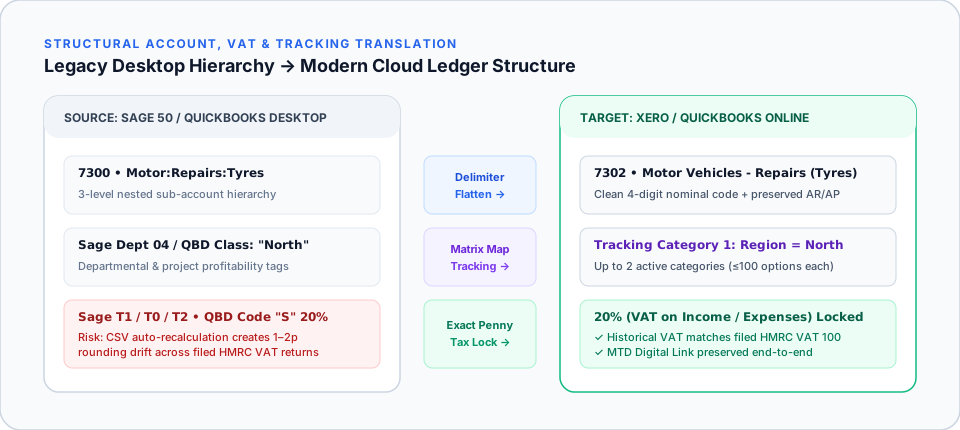
1. Colon-Delimited Sub-Accounts (Parent:Child:Grandchild)
QuickBooks Desktop allows up to five nested account levels (for example, Overhead:Motor Expenses:Van 1:Fuel). Xero uses a flat Chart of Accounts without nested sub-accounts[2]. Uploading raw colon-separated strings creates messy account names unless flattened deliberately and paired with Xero Tracking Categories (see QuickBooks Classes vs Xero Tracking Categories).
2. System Control Account Restrictions
In both Xero and QuickBooks Online, Accounts Receivable (Debtors), Accounts Payable (Creditors), Retained Earnings, and VAT Control are protected system accounts[2]. You cannot populate opening debtor or creditor balances properly by typing numbers into a CoA spreadsheet: open customer invoices and unpaid supplier bills must be imported individually so future bank receipts match cleanly.
3. Missing Historical Detail Above 350,000 Targets
If you exported your Chart of Accounts because Intuit’s built-in QBO converter failed with a target-count error, read Fixing QuickBooks Desktop to Online Conversion Errors and What Data Does NOT Migrate from QBD to QBO. Rather than abandoning years of trading history, upload your .QBB backup to TrustSwitch for a flat-fee £245 to £595 + VAT conversion verified to £0.00 Trial Balance discrepancy.
Frequently Asked Questions
Can I import a QuickBooks `.IIF` file directly into Xero?
Why do opening balances go wrong if I import my Chart of Accounts CSV manually?
Should I delete old inactive accounts in QuickBooks Desktop before migrating?
Does TrustSwitch map QuickBooks Desktop accounts without nominal numbers?
Don’t Rebuild Your Ledger by Hand from .IIF Text Files
Upload your `.QBB` backup once. Our UK specialist maps your Chart of Accounts, sub-accounts, and up to 10+ years of transactions with £0.00 variance.